AI Camera Platform

Intelligent Surveillance & Workforce Management

Multi-Tenant AI-Powered Camera Platform

The AI Camera Platform is a multi-tenant SaaS solution that connects camera networks with AI inference engines to automate attendance tracking, detect workplace violations, and provide real-time monitoring across multiple organizations.

System Pipeline

Cameras
Recorder Node
Cloud Storage
AI Inference
Dashboard

Platform Capabilities

Multi-Tenant

Isolated environments for each company with dedicated data and custom configurations.

AI Inference

Real-time video analysis using configurable AI models for detection tasks.

Attendance Tracking

Automated facial recognition-based attendance logging and verification.

Violation Detection

Rule-based detection of PPE violations, zone breaches, and policy infractions.

DVR Integration

Seamless integration with Hikvision ISAPI DVRs for channel discovery and RTSP streaming.

Reports & Exports

Generate CSV and PDF reports for attendance, violations, and workforce analytics.

99.9%
Platform Uptime
Cameras Supported
<2s
Inference Latency
Multi
Tenant Isolation

Complete Feature Set

Every capability you need to deploy an enterprise-grade AI camera monitoring platform.

Camera Management

  • Add cameras with RTSP URLs
  • DVR channel discovery and import
  • Per-camera recording toggle
  • Per-camera inference toggle
  • Sparse recording mode

AI Inference Engine

  • Distributed inference worker fleet
  • Pluggable AI model registry
  • Zone-based rule execution
  • Confidence threshold configuration
  • Multi-capability worker routing

Employee Management

  • Employee profile management
  • Face enrollment workflow
  • Shift group assignment
  • Department organization
  • Biometric data management

Attendance System

  • AI facial recognition check-in
  • Fingerprint terminal integration
  • Manual attendance adjustment
  • Late & overtime calculation
  • Attendance record verification

Violation Management

  • Rule-based violation detection
  • Multi-evidence attachment
  • Violation timeline tracking
  • Employee appeal submission
  • Supervisor appeal review

Analytics & Reports

  • Attendance summary reports
  • Violation frequency reports
  • CSV and PDF export
  • Custom date range filters
  • Department-level analytics

Security & Access

  • Role-based access control
  • Two-factor authentication
  • Encrypted credential storage
  • API token authentication

Platform Management

  • Multi-tenant provisioning
  • Subscription plan management
  • Audit log trail
  • Support ticket system

System Requirements

Minimum and recommended specifications for each component of the AI Camera Platform.

Backend Server

OSUbuntu 22.04 LTS+
CPU4 cores minimum
RAM8 GB minimum
Storage50 GB SSD
PHP8.4+

Inference Worker

GPUNVIDIA GTX 1060+ (recommended)
RAM16 GB minimum
OSUbuntu 20.04+
Storage100 GB for models

Network

Camera to RecorderLAN or RTSP stream
Recorder to StorageUpload: 10 Mbps+
Inference to PlatformHTTPS REST API
FirewallPorts 80, 443, RTSP

Web Browser

SupportedChrome 90+, Firefox 88+, Edge 90+
Resolution1280×768 minimum
JavaScriptMust be enabled
Production Recommendation

For production deployments, use dedicated servers for the backend, recorder nodes, and inference workers. Shared infrastructure is supported for development and testing only.

How It Works

The AI Camera Platform connects hardware cameras to AI models through a robust distributed pipeline that processes video in real time.

How It Works Pipeline
1

Camera Streams Video

IP cameras and DVR channels stream video via RTSP protocol to assigned recorder nodes.

2

Recorder Node Captures Segments

Recorder workers capture video segments and upload them to configured storage (S3 or local).

3

Segments Stored in Cloud

Video segments are stored with metadata and queued for AI inference processing.

4

Inference Worker Processes Segments

AI workers claim jobs, download segments, run configured models, and report detections back to the platform.

5

Violations & Events Ingested

The platform receives raw detections, matches them to rules, and creates violation or attendance records.

6

Alerts & Reports Generated

Employees and supervisors receive notifications. Managers view dashboards and generate reports.

User Roles

Super Admin

Manages the platform — tenants, plans, workers, rules.

  • Provision tenants
  • Configure AI workers
  • Manage subscriptions

Tenant Admin

Manages company operations — cameras, employees, violations.

  • Add employees
  • Review violations
  • Generate reports

Employee

Views own attendance, violations, and notifications via mobile.

  • Check attendance
  • View violations
  • Submit appeals

System Workers

Automated recorder and inference nodes that process video.

  • Capture segments
  • Run AI models
  • Report results

Glossary

Key terms and concepts used throughout the AI Camera Platform documentation.

Tenant
A company or organization that subscribes to the platform. Each tenant has its own isolated database, cameras, employees, and settings.
Zone
A physical area within a site (e.g., entrance, production floor). Zones are assigned detection rules and linked to cameras.
Site
A physical location (building or campus) that belongs to a tenant and contains multiple zones and cameras.
Recorder Node
A server that connects to cameras, records video segments, and uploads them to cloud storage for AI processing.
Inference Worker
A server that downloads video segments, runs AI models, and reports detections (violations, attendance events) back to the platform.
Recording Segment
A time-bounded video clip captured by a recorder node. Each segment is processed by one or more inference jobs.
Inference Job
A task that assigns a recording segment to an inference worker for AI analysis based on zone rules.
Rule
A detection criterion that defines what the AI should detect (e.g., missing PPE), its severity, confidence threshold, and capability key.
Violation
An AI-detected rule breach recorded with evidence (images/timestamps). Can be pending, confirmed, or dismissed.
Enrollment Status
An employee's face registration state: not_enrolled → pending → enrolled. Face data is required for AI-based attendance.
ShiftGroup
A work schedule definition with start time, end time, break minutes, and working days used to compute attendance records.
DVR
Digital Video Recorder. Integrated via Hikvision ISAPI to discover camera channels and generate RTSP URLs automatically.
RTSP
Real-Time Streaming Protocol. The standard protocol used by IP cameras to stream live video to recorder nodes.
Biometric
A digital representation of an employee's facial features used for recognition and attendance verification.
Sanctum Token
A Laravel Sanctum API token used by employees, recorder nodes, and inference workers for stateless API authentication.
Capability
A string key identifying what type of inference an AI model can perform (e.g., process-attendance-segment).
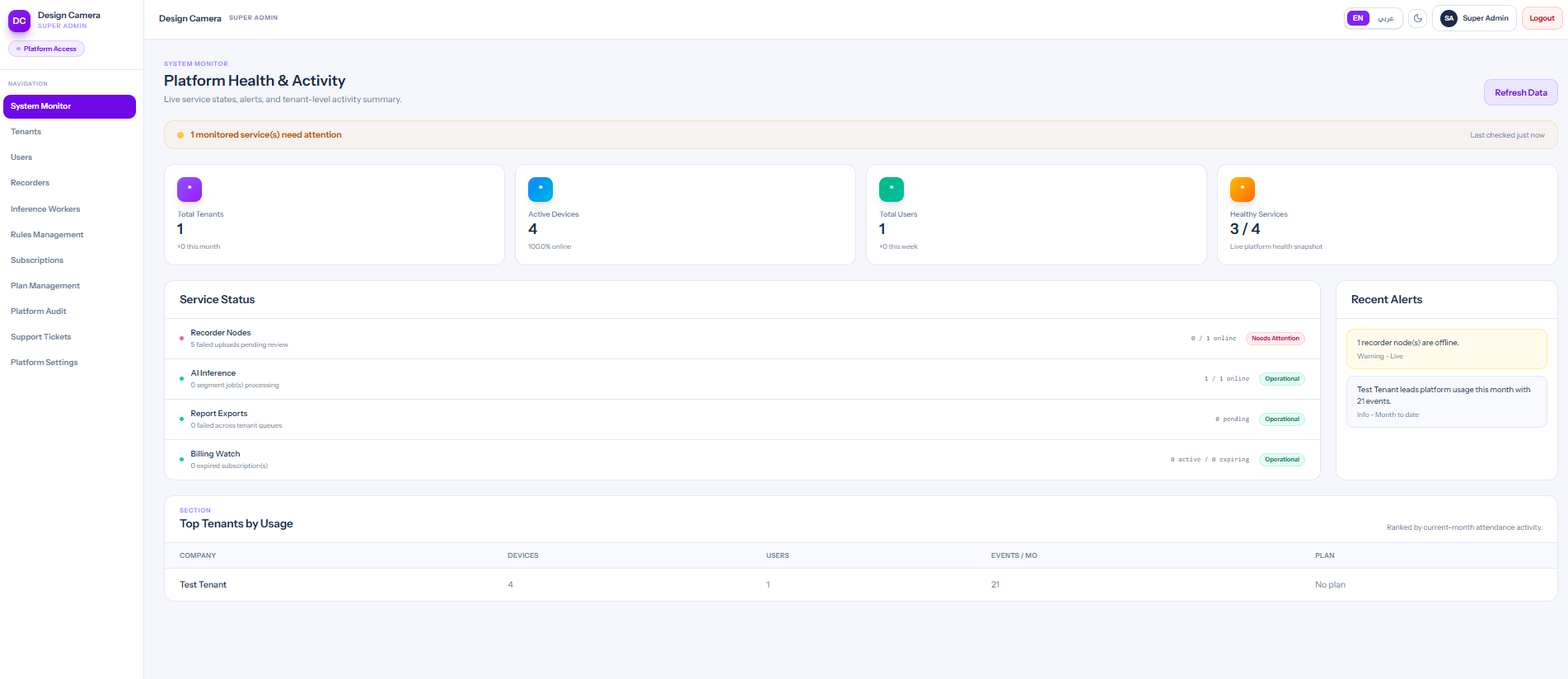
Super Admin Dashboard

Platform Metrics

Active Tenants
Total companies currently subscribed to the platform
Total Cameras
Cameras registered across all tenants
Recorder Nodes
Active recorder nodes and their upload health
Inference Workers
Active AI workers and current processing load
Violations Today
Total violations detected platform-wide today
System Events
Recent system-level activities and alerts

System Health

Monitor the real-time status of all platform components from the dashboard health panel.

Backend APIAll endpoints responding normally
Healthy
Queue WorkersProcessing jobs at expected rate
Running
StorageS3 connection active, no upload errors
Connected
Inference FleetWorkers heartbeating within threshold
Active

Tenant Management

Create and manage companies (tenants) on the platform. Each tenant gets an isolated environment with its own database, domain, and subscription.
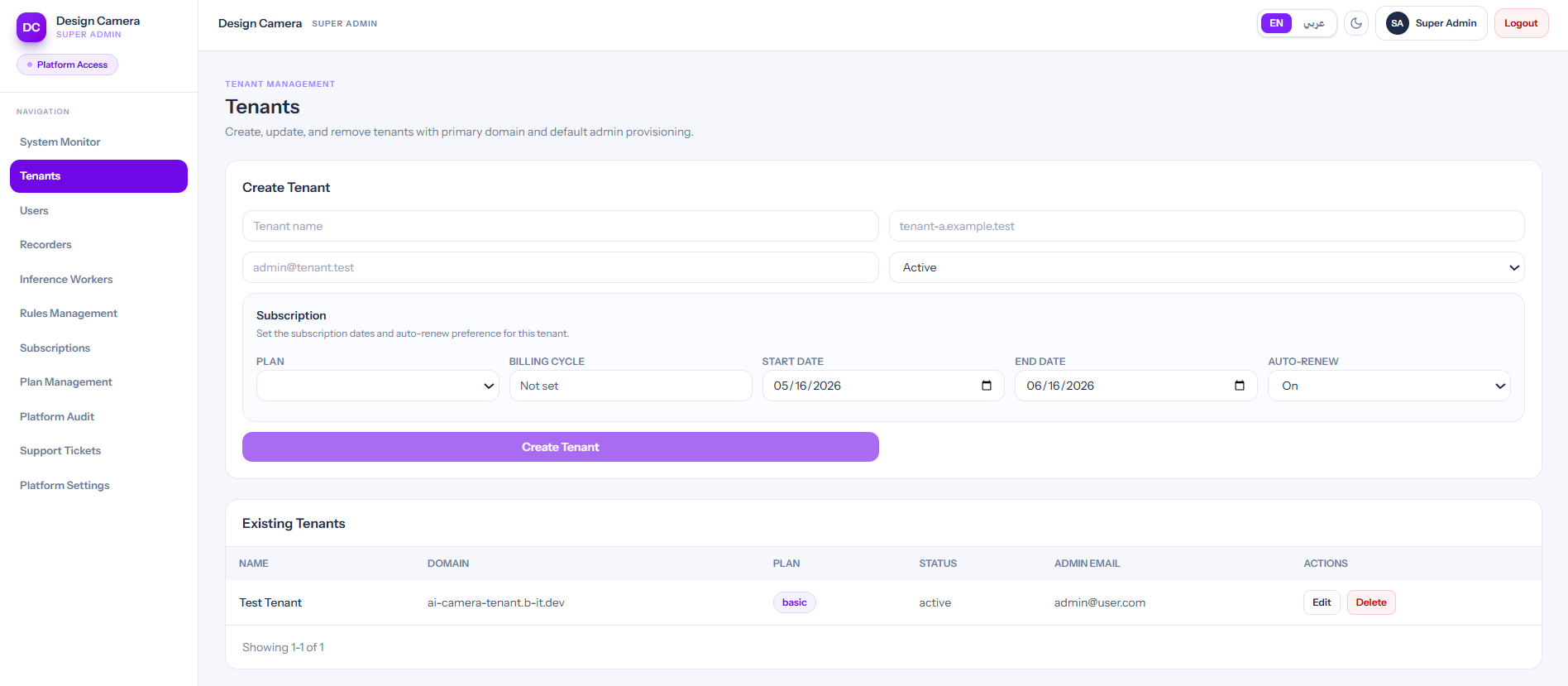
Tenant Management

Creating a New Tenant

To onboard a new company, navigate to Super Admin → Tenants and click 'Create Tenant'.
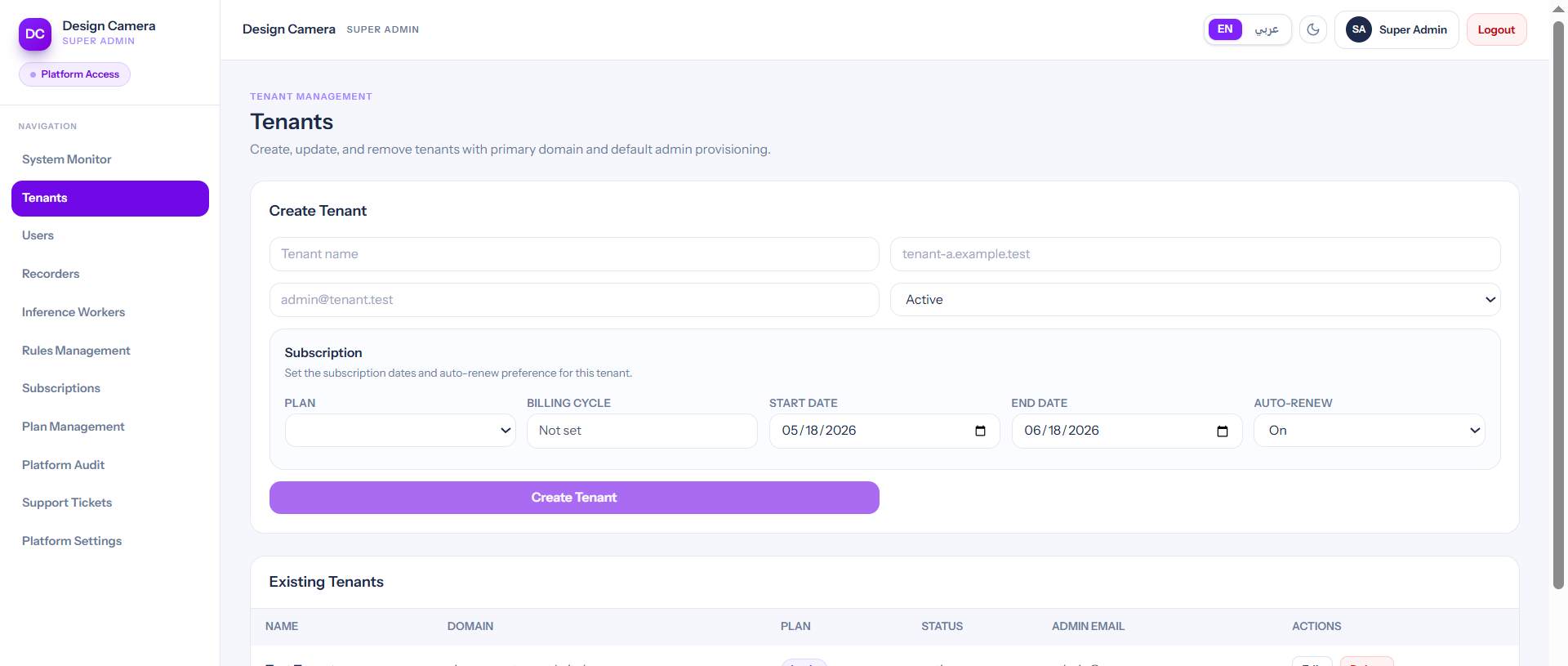
1Navigate to Super Admin → Tenants
2Click 'Create Tenant' and fill in the company details
3Set the tenant's unique domain name
4Assign or create a subscription plan
5Save — the tenant's isolated database is provisioned automatically
Create Tenant
Automatic Provisioning

When a tenant is created, the system automatically provisions a separate database, creates the initial admin user, and runs all tenant migrations. No manual database setup is required.

Plans & Subscriptions

Define subscription plans with feature sets and billing intervals. Assign plans to tenants and manage renewals from the subscriptions panel.
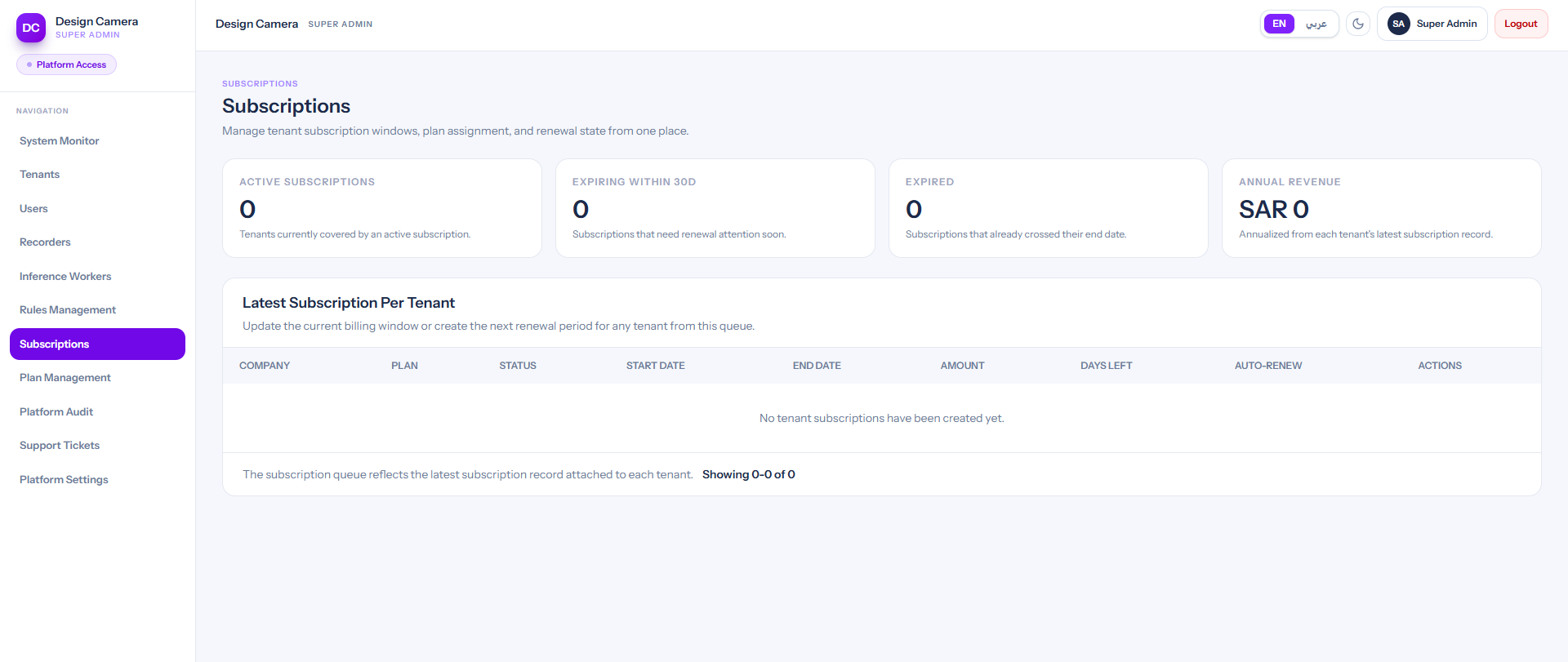
Plans and Subscriptions

Creating a Plan

Plans define what features a tenant can access and how they are billed.
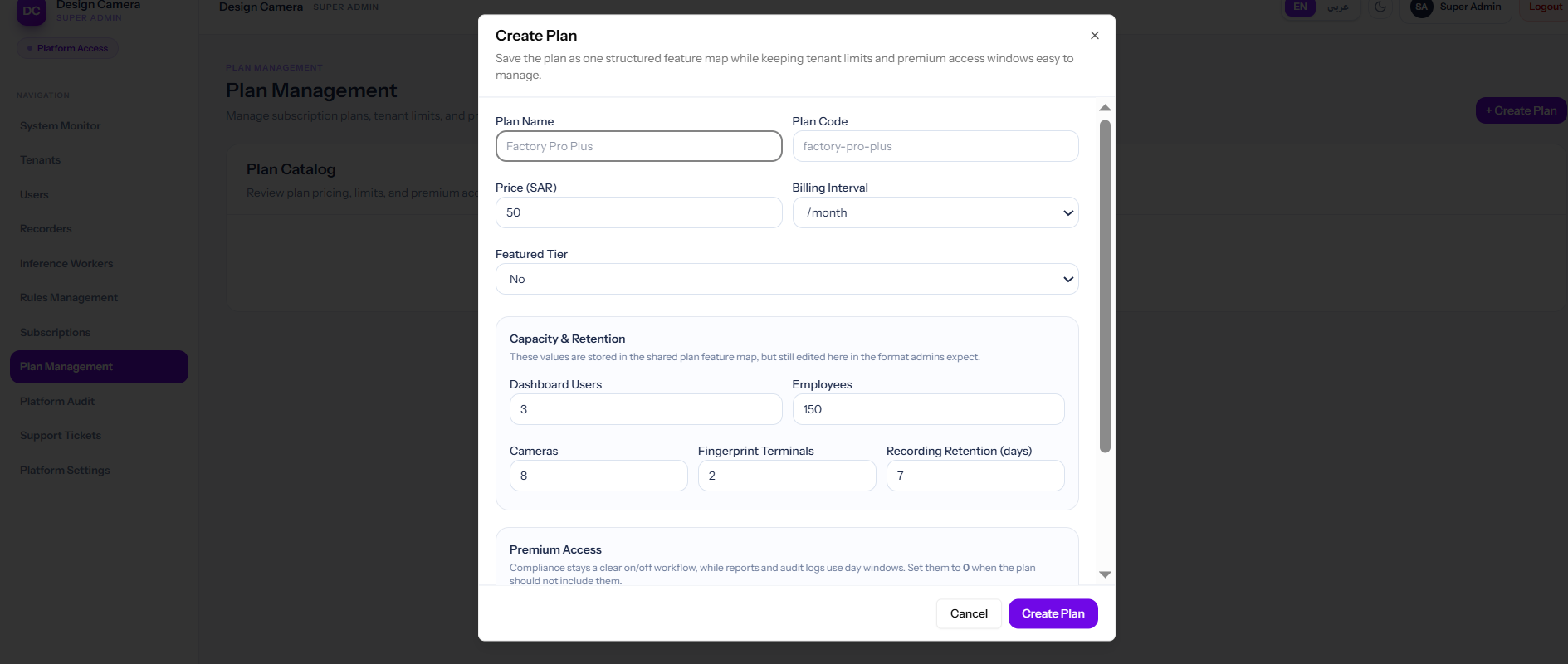
Monthly
Every 30 days
Flexible, higher rate
Quarterly
Every 90 days
3-month commitment
Annual
Every 365 days
Best value
Plan Creation

Plan Features

Each plan can include any combination of platform features that are toggled on for subscribed tenants.

Camera management
AI inference engine
Attendance tracking
Violation detection
DVR integration
Fingerprint terminals
Report exports
Support tickets
Audit logs
Custom rules

Managing Subscriptions

Assign Plan
Link a plan to a tenant when onboarding or upgrading
Renew Subscription
Extend a tenant's active subscription before it expires
Export Details
Download subscription history and billing records
Monitor Expiry
View upcoming subscription expirations and send renewal reminders

Platform Audit

A complete audit trail of all actions performed across the platform by super admin users — tenant creation, plan changes, rule updates, and infrastructure changes.

Platform Audit Logs

Log Entry Fields

Each audit entry captures who did what, when, and on which resource.

timestamp
Date and time the action was performed
actor
The super admin user who performed the action
action
Type of operation: create, update, delete, approve, etc.
resource
The entity that was affected (tenant, plan, recorder, etc.)
changes
Before and after values for updated fields

Tracked Events

The following platform-level operations are logged automatically:

Tenant created, updated, or deleted
Plan created or modified
Subscription renewed or changed
Recorder node approved or configured
Inference worker approved or assigned
Rule created or updated

Platform Settings

Manage your super admin profile, password, and two-factor authentication settings.

Profile & Account

Update your super admin account details.

profile
Edit your display name and email address
password
Change your account password (rate-limited to 6 attempts per minute)
two_factor
Set up or disable two-factor authentication for your account
Two-Factor Authentication

Enabling two-factor authentication adds an extra layer of security to the super admin account. Use an authenticator app to generate login codes.

Tenant Dashboard

The tenant dashboard is your central hub for managing cameras, employees, attendance, and violations for your organization.

Tenant Dashboard Overview

Dashboard Widgets

Attendance Summary
Today's check-ins, absences, late arrivals at a glance
Camera Status
Live recording and inference status for all cameras
Recent Violations
Latest AI-detected violations requiring review
Pending Appeals
Violation appeals waiting for supervisor decision
Recorder Health
Upload queue status and storage usage

Employee Management

Add and manage employees who will be tracked for attendance and monitored for violations. Employees can also log into the mobile app.

Employee Management

Adding an Employee

Fill in the employee's details to create their profile and mobile app account.

employee_code
Unique identifier used for mobile app login (e.g., EMP001)
full_name
Employee's full name as displayed in reports
email
Email address for notifications and password reset
phone
Mobile phone number for SMS alerts (optional)
department_id
Department the employee belongs to
shift_group_id
Work schedule for attendance calculation
Add Employee

Face Enrollment Status

Employees must complete face enrollment before AI-based attendance tracking can identify them.

Not Enrolled
No face data submitted. AI cannot identify this employee.
Pending
Face image submitted, awaiting AI processing and profile generation.
Enrolled
Face profile ready. AI attendance verification is active.

Face Enrollment Process

Employees submit their face images through the mobile app to enable AI-based attendance tracking.

1Employee logs into the mobile app
2Navigates to Profile → Face Enrollment
3Captures a clear frontal face image in good lighting
4Submits the image — status changes to 'Pending'
5Inference worker processes the image and generates a face profile — status changes to 'Enrolled'
Face Enrollment Steps

Sites & Zones

Organize your physical locations into sites and zones. Cameras, detection rules, and inference workers are all linked through zones.

Sites and Zones

Managing Sites

A site represents a physical location (e.g., factory building, office campus). Sites contain zones.

name
Display name for the site (e.g., 'Main Factory')
code
Short unique code for the site (e.g., 'MF-01')
timezone
Site timezone used for attendance and schedule calculations
is_active
Toggle to enable or disable the site
Create Site

Managing Zones

Zones are specific areas within a site. Each zone can have detection rules assigned to it.

Attendance Zone
Entry/exit point monitored for check-in and check-out events
Restricted Zone
Area with access restrictions where intrusions are detected
Production Zone
Work area monitored for PPE compliance and productivity
Safety Zone
High-risk area with mandatory safety equipment enforcement
Create Zone
Site
Zone A
Zone B
Zone C
Cameras

Cameras

Add and configure cameras that capture video for recording and AI analysis. Cameras can be added manually or imported from DVR devices.

Cameras Management

Adding a Camera

Each camera requires an RTSP URL and must be assigned to a site and zone.

name
Descriptive camera name (e.g., 'Main Entrance Cam 1')
rtsp_url
Full RTSP stream URL including credentials if required
site_id
The site this camera is physically located in
zone_id
The zone within the site that this camera monitors
dvr_device_id
If imported from a DVR, the parent device reference
credentials
Camera username and password (stored encrypted)
Add Camera

Camera Toggles

Recording Enabled
When enabled, the assigned recorder node will continuously capture video segments from this camera
Inference Enabled
When enabled, captured segments will be queued for AI analysis by inference workers
Attendance Enabled
When enabled, the camera's inference results will contribute to employee attendance records
Sparse Recording
When enabled, recording only triggers on motion detection to reduce storage usage
Camera Toggles

Recording Segments

Each camera generates video segments that can be reviewed, downloaded, and re-processed from the camera detail page.

Preview Segment
View the converted preview of a recording segment directly in the browser
Download Original
Download the original full-resolution video segment
Retry Inference
Re-queue a segment for AI processing if the previous attempt failed
View Detections
See all AI detections and their confidence scores for the segment
Recording Segments

Fingerprint Terminals

Connect fingerprint terminals to supplement or replace camera-based attendance tracking with biometric punch data.

Adding a Fingerprint Terminal

Register a fingerprint terminal by entering its connection details.

name
Terminal display name (e.g., 'Factory Gate Terminal')
vendor
Terminal manufacturer (e.g., ZKTeco, Hikvision)
serial_number
Unique device serial number
site_id
Physical site where the terminal is installed
zone_id
Zone the terminal covers for attendance attribution

Sync Options

Configure how the terminal's data integrates with the attendance system.

Sync Attendance
Automatically import punch records from the terminal as attendance events
Unmatched Punch Review
Flag punch records that cannot be matched to a registered employee for manual review

Attendance Management

Track and manage employee attendance captured from cameras, fingerprint terminals, and manual entries. Review records, verify anomalies, and create adjustments.

Attendance Events

Raw attendance events are the individual check-in and check-out records captured from various sources before they are compiled into daily records.

AI Inference (Face Recognition)
Manual Entry
Fingerprint Terminal
Attendance Events

Attendance Records

Daily attendance records are computed from events using the employee's assigned shift group. They include timing analysis and status tags.

Late
Early Leave
Overtime
On Time
Absent
Late Minutes
Minutes after shift start the employee checked in (after grace period)
Early Leave Minutes
Minutes before shift end the employee checked out
Overtime Minutes
Minutes worked beyond the shift end time
Working Seconds
Net working time after break deductions
Attendance Records

Manual Verification

Supervisors can manually verify attendance records that were flagged as unverified or anomalous.

1Go to Attendance → Records
2Filter for 'Unverified' status records
3Review the employee's check-in and check-out times
4Click 'Verify' to confirm the record is accurate

Attendance Adjustments

Create adjustments to correct attendance records that were missed or incorrectly captured.

Adjustments override computed records. When an adjustment is created for a date, it replaces the original check-in and check-out times in the final record.
Attendance Adjustments

Rules

View the detection rules assigned to your zones. Rules define what the AI should flag as a violation — PPE non-compliance, restricted area breaches, curfew violations, and more.

Rules Management

Rule Types

The following types of rules can be assigned to zones by the super admin:

PPE Violation
Detects employees not wearing required safety equipment
Restricted Zone Breach
Alerts when an unauthorized person enters a restricted area
Curfew Violation
Flags presence in a zone outside of permitted hours
Behavioral Rule
Custom AI-based behavioral detection configured per zone

Zone Rule Assignments

Rules are assigned to specific zones by the super admin. As a tenant, you can view active rules per zone.

1Go to Rules from the sidebar
2See which rules are active for each of your zones
3Contact support to request changes to rule assignments
Rule Configuration

Detection rules and thresholds are configured at the platform level by super admins. Tenants can view their active rules but cannot modify them directly.

Violations

Review AI-detected rule violations. Each violation includes evidence from the camera segment that triggered the detection.

Violation Status Lifecycle

Pending
Newly detected, awaiting supervisor review
Confirmed
Verified by supervisor as a genuine violation
Dismissed
Reviewed and dismissed as a false positive
Violations List

Violation Evidence

Each violation is captured with multiple evidence pieces from the video segment that triggered the detection.

Screenshot
Frame image from the moment of detection with bounding boxes
Video Clip
Short video segment showing the violation in context
Timestamp
Exact time of occurrence with confidence score
Violation Evidence

Employee Appeals

Employees can submit appeals for violations they believe are incorrect. Supervisors review and approve or reject appeals.

1Employee submits appeal via the mobile app with a reason
2Supervisor receives notification of the new appeal
3Supervisor reviews the appeal and attached evidence
4Supervisor approves or rejects the appeal with a decision note
Pending Review
Approved
Rejected

Reports

Generate and export reports for attendance history, violation summaries, and workforce analytics.

Reports and Exports

Attendance Report

Daily attendance records with timing analysis and status breakdown

Overtime Report

Employees who worked beyond their scheduled hours

Violations Report

Violation frequency by employee, zone, and rule type

Absenteeism Report

Employees with high absence rates over a date range

Exporting Reports

Reports can be exported in CSV or PDF format. Exports are generated asynchronously and available for download once ready.

CSV
Spreadsheet format, ideal for further analysis in Excel or Google Sheets
PDF
Formatted document suitable for printing and sharing with management

Audit Logs

A full audit trail of all actions performed within your tenant dashboard — who created, updated, or deleted what, and when.

Audit Logs

Log Entry Fields

Each entry records the action, the user who performed it, and the affected resource.

timestamp
Date and time the action was performed
user
The dashboard user who performed the action
action
Type of operation: create, update, delete, verify, etc.
resource
The entity affected (employee, camera, attendance record, etc.)

Tracked Actions

All significant actions in the dashboard are automatically logged:

Employee created, updated, or deleted
Camera added, configured, or removed
Attendance record verified or adjusted
Violation appealed or resolved
User or role created or modified
Support ticket submitted or updated

Settings

Configure video retention policies, white-label branding, and monitor system states for your tenant environment.

Retention Policy

Control how long recorded video segments are kept before automatic deletion.

1Set the number of days to retain raw camera recordings
2Configure separate retention for processed/inference segments
3Changes take effect from the next scheduled cleanup cycle
Retention Policy

White-Label Branding

Customize the dashboard appearance to match your organization's brand.

logo
Upload your company logo to replace the default platform logo
primary_color
Set the primary brand color used across the dashboard
company_name
Display name shown in the header and emails
White-Label Settings

System States

Monitor the current operational status of your platform components.

Recording
Active recorder nodes capturing video from cameras
Inference
AI workers processing video segments for detections
Attendance Sync
Status of attendance event processing and record generation
System States

Employee Login & Authentication

Employees log into the mobile app using their employee code and password. A secure OTP-based password reset flow is available.

login screenshot

How to Log In

1Open the AI Camera mobile app
2Enter your Employee Code (provided by HR)
3Enter your password
4Tap 'Login' to access your dashboard
5Use 'Forgot Password' to reset via OTP if needed
Secure token-based authentication
OTP password reset via SMS
Automatic session management

My Attendance

View your daily attendance records, check-in and check-out times, and historical attendance data.

attendance screenshot

Viewing Attendance

1Go to the Attendance tab in the mobile app
2View today's check-in and check-out status
3Swipe to see previous days
4Tap a record to see timing details and status tags
5Filter by date range for historical records
Today's attendance at a glance
Complete attendance history
Late, overtime, and absence indicators

My Violations

View violations detected by the AI system and submit appeals for violations you believe are incorrect.

violations screenshot

Managing Violations

1Go to the Violations tab in the mobile app
2Review the list of detected violations
3Tap a violation to see the evidence (images and timestamps)
4If you believe the violation is wrong, tap 'Submit Appeal'
5Enter your reason and submit — your supervisor will review it
Evidence viewing with screenshot
One-tap appeal submission
Real-time appeal status tracking

Notifications

Stay updated with real-time notifications for new violations, attendance confirmations, and appeal decisions.

notifications screenshot

Managing Notifications

1Tap the bell icon to open your notifications
2Tap a notification to view full details
3Swipe left on a notification to mark it as read
4Tap 'Mark All Read' to clear all unread notifications
5aiCameraDocs.employeeApp.notifications.steps.items.4
Violation detection alerts
Appeal decision notifications
Attendance confirmation messages